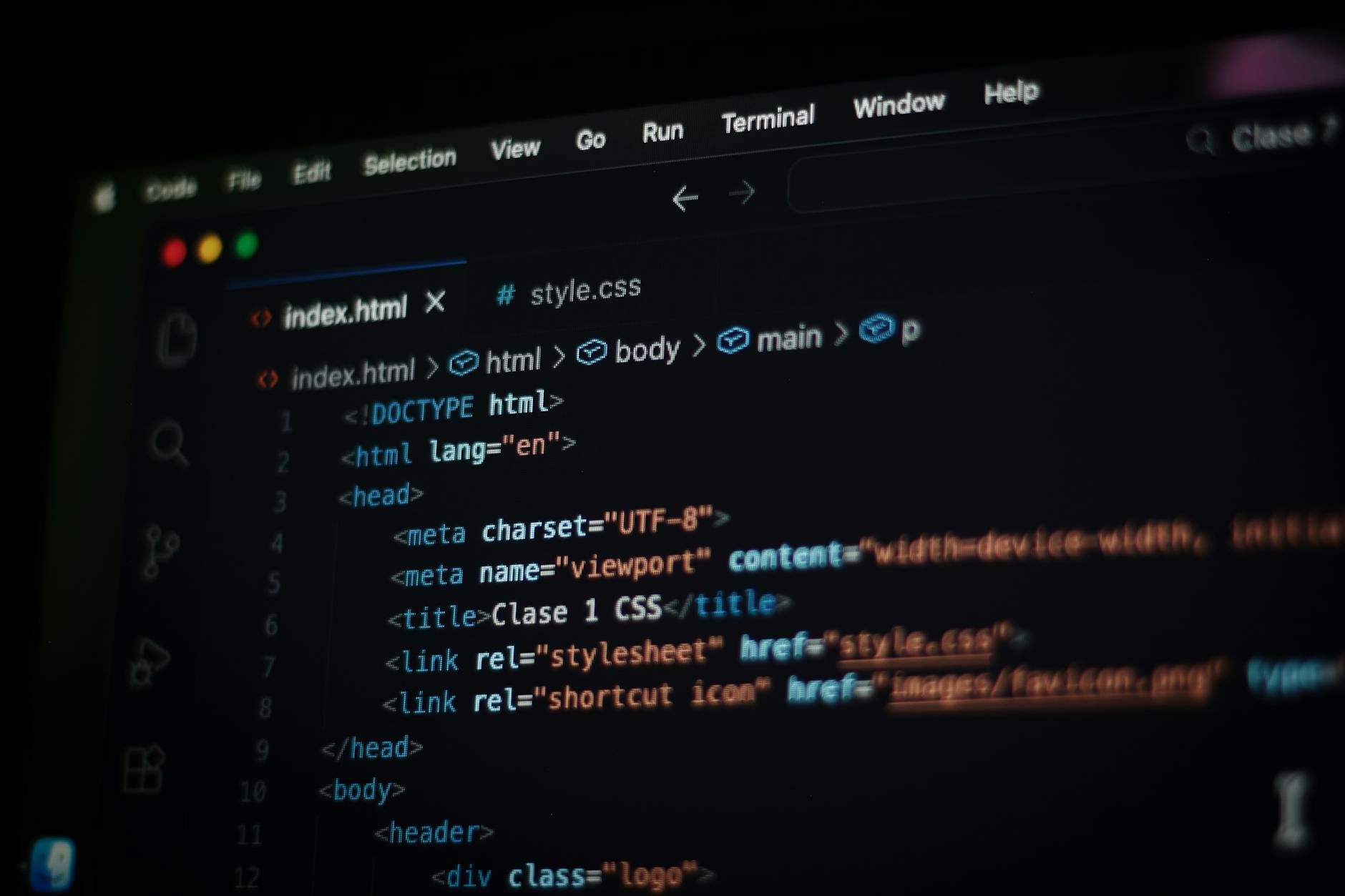
Cursor is an AI-powered code editor built on VS Code. It offers AI agent assistance, tab completions, and cloud-based code review. This guide walks you through downloading the installer from cursor.com, running the setup on macOS, Windows, or Linux, and opening your first project. By the end, you'll have a working Cursor installation ready to write code.
What you'll need
- A Mac (macOS 10.15 or later), Windows PC (Windows 10 or later), or Linux machine (Ubuntu 20.04+, Fedora, or similar)
- At least 500 MB of free disk space
- An internet connection to download the installer (approximately 150–200 MB)
- Administrator or sudo privileges to install software
- Optional: A Cursor account (you can create one during first launch or use the free Hobby tier without sign-up)
Step 1 — Download the Cursor installer
Open your browser and navigate to cursor.com. Click the blue Download button in the top-right corner or the Download button in the pricing table under the Hobby (Free) column. The site auto-detects your operating system and serves the correct installer: a .dmg file for macOS, a .exe for Windows, or a .AppImage or .deb for Linux. Save the file to your Downloads folder.
Step 2 — Install Cursor on macOS
If you're on a Mac, locate the .dmg file in your Downloads folder and double-click it. A Finder window opens showing the Cursor app icon and an Applications folder shortcut. Drag the Cursor icon into the Applications folder. macOS will copy the app; this takes 10–30 seconds. Once complete, eject the disk image by right-clicking the mounted Cursor volume in Finder's sidebar and selecting Eject. Open your Applications folder and double-click Cursor to launch it. macOS may show a security prompt ('Cursor is an app downloaded from the internet. Are you sure you want to open it?'). Click Open. Cursor will start and display a welcome screen.
Step 3 — Install Cursor on Windows
If you're on Windows, locate the .exe installer in your Downloads folder and double-click it. Windows may show a User Account Control prompt asking for permission to make changes; click Yes. The Cursor Setup wizard opens. Accept the license agreement, choose your installation folder (the default is C:\Users\[YourName]\AppData\Local\Programs\Cursor), and check the boxes for 'Create a desktop icon' and 'Add to PATH' if you want command-line access. Click Install. The installer extracts files and registers the application; this takes 1–2 minutes. When finished, check 'Launch Cursor' and click Finish. Cursor opens to the welcome screen.
Step 4 — Install Cursor on Linux
If you're on Linux, the cursor.com download page typically provides a .AppImage file or a .deb package. For .AppImage: download the file, open your terminal, navigate to your Downloads directory (cd ~/Downloads), make the file executable (chmod +x Cursor-*.AppImage), then run it (./Cursor-*.AppImage). For .deb (Debian/Ubuntu): download the .deb file, open your terminal, navigate to Downloads, and install with sudo dpkg -i cursor_*.deb. If you encounter missing dependencies, run sudo apt-get install -f to resolve them. After installation, launch Cursor from your application menu or by typing cursor in the terminal. Cursor opens to the welcome screen.
Step 5 — Sign in or continue without an account
On the welcome screen, Cursor prompts you to sign in or continue without an account. If you want to use the free Hobby tier, you can skip sign-in and click Continue Without Account or Try for Free. If you plan to use paid features (Pro, Teams, or Enterprise), click Sign In and authenticate with your email, GitHub, or Google account. The Hobby tier gives you limited Agent requests and Tab completions without a credit card. After signing in or skipping, Cursor displays the main editor interface.
Step 6 — Open or create your first project
In the Cursor window, click File in the top menu bar, then select Open Folder (macOS/Linux) or Open Folder (Windows). Navigate to an existing code project directory or create a new folder for a test project. Click Open. Cursor loads the folder into the sidebar. To create a new file, right-click in the Explorer sidebar and choose New File, or press Cmd+N (Mac) / Ctrl+N (Windows/Linux). Name your file (for example, index.html or main.py) and start typing. Cursor's AI tab completion and agent features are now active. You'll see inline suggestions as you type; press Tab to accept a completion.
Step 7 — Configure privacy mode (optional)
If you want to prevent your code from being sent to Cursor's model providers or used for training, enable Privacy Mode. Click the gear icon (Settings) in the bottom-left corner of the Cursor window. In the Settings panel, search for 'privacy' in the search bar. Toggle the Privacy Mode switch to On. When enabled, Cursor guarantees that code data is never stored by model providers or used for training. Team admins can enforce privacy mode organization-wide in the Teams or Enterprise plans. Close the Settings panel. Your privacy preference is saved.
If something breaks
- Symptom: macOS shows 'Cursor cannot be opened because the developer cannot be verified' → Fix: Right-click the Cursor app in Applications, hold Option, and click Open. Click Open in the dialog. macOS will remember your choice.
- Symptom: Windows Defender or antivirus blocks the installer → Fix: Temporarily disable your antivirus, run the installer, then re-enable protection. Cursor is a legitimate application; false positives are rare but can occur with new releases.
- Symptom: Linux .AppImage won't run ('Permission denied') → Fix: Ensure you ran chmod +x Cursor-*.AppImage. If FUSE is missing, install it: sudo apt-get install fuse (Ubuntu/Debian) or sudo dnf install fuse (Fedora).
- Symptom: Cursor opens but won't load folders or files → Fix: Check disk permissions. On macOS, go to System Preferences > Security & Privacy > Privacy > Files and Folders, and grant Cursor access. On Windows, ensure your user account has read/write access to the project folder.
- Symptom: AI completions aren't appearing → Fix: Verify you're signed in and have remaining quota on your plan (Hobby tier has limited requests). Check your internet connection; Cursor requires an active connection for cloud-based AI features. Restart Cursor if completions still don't appear.
What to do next
Now that Cursor is installed, explore its AI agent and tab-completion features by opening a real project and writing a function or component. Try using Cmd+K (Mac) or Ctrl+K (Windows/Linux) to invoke the AI agent inline, or click the Agent panel in the sidebar to ask questions about your codebase. If you're working on a team, consider upgrading to the Teams plan ($40/user/mo) for shared context, team-wide rules, and SSO. For more advanced workflows, check out Cursor's official documentation at cursor.com to learn about MCPs, skills, hooks, and cloud agents.
Cursor
- +Built on VS Code with familiar interface and extension compatibility
- +AI agent and tab completions included in free tier (with limits)
- +Privacy mode available to prevent code storage or training use
- +Cross-platform: macOS, Windows, and Linux support
- −Hobby tier has limited Agent requests and Tab completions
- −Cloud-based AI features require internet connection
- −Paid plans required for frontier models, cloud agents, and team features